How to Add Friends in Star Citizen (2026)
Step-by-step guide to adding friends in Star Citizen — via Spectrum, the main menu, mobiGlas, and the Inner Thought wheel. Includes fixes for the empty friends list bug.
TL;DR: You can add friends in Star Citizen four ways — search their handle on the RSI website (Spectrum), use the Friends panel on the game's main menu, send a request via the mobiGlas Commlink Members list (Global Chat → Members → Send Friend Request), or use the in-game Inner Thought wheel (hold F) when standing next to another player. Once the request is accepted, the friendship persists across all servers and shards. If your list looks empty, that's the well-known display bug — relog or clear your USER folder.
Updated for Alpha 4.9 — July 2026 (version note refreshed September 27, 2026 for Alpha 4.10.1).
Method 1 — Add a friend via the RSI website (Spectrum)
This is the most reliable method and works even when the game won't launch. Spectrum is the official RSI community platform — your Spectrum friends list is your in-game friends list.
- Sign in at robertsspaceindustries.com and open Spectrum.
- Click the search icon at the top and type your friend's exact handle (case-insensitive, but spelling must match).
- Open their profile from the search results.
- Click Add Friend on the profile header.
- They'll get a notification on Spectrum and in-game on next launch. Once accepted, they appear in your contacts list everywhere — RSI website, main menu, and mobiGlas.
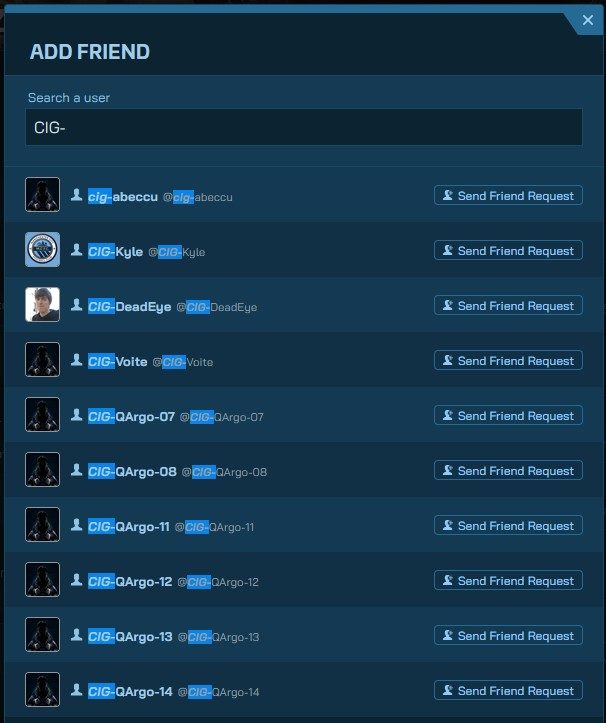
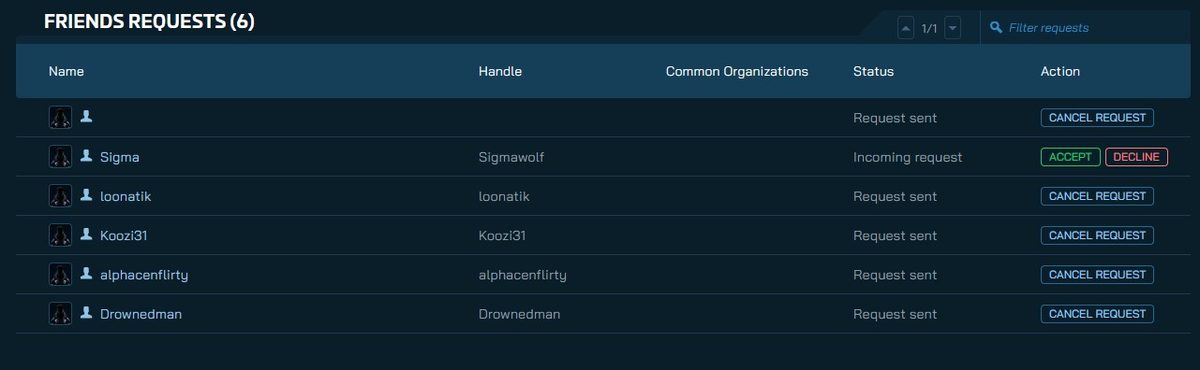
Tip: Pending requests live in Spectrum under your avatar menu → Settings → Friends. Both incoming and outgoing requests are listed there, and you can cancel an outgoing request you sent in error.
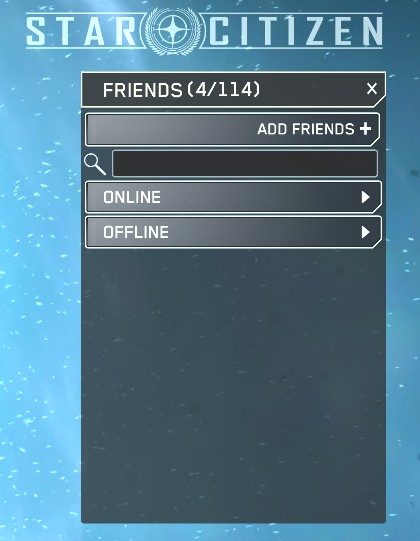
Method 2 — Add from the Star Citizen main menu
If the game is launched but you haven't picked a server yet, you can add friends from the main menu without entering the Persistent Universe.
- Launch Star Citizen and stop at the main menu (don't click Enter Universe yet).
- Look at the Friends panel on the right side of the screen.
- Click the + Add Friend button at the top of the panel.
- Type the player's handle and confirm.
- The request is sent the same way as a Spectrum request — they accept from Spectrum, the main menu, or in-game.
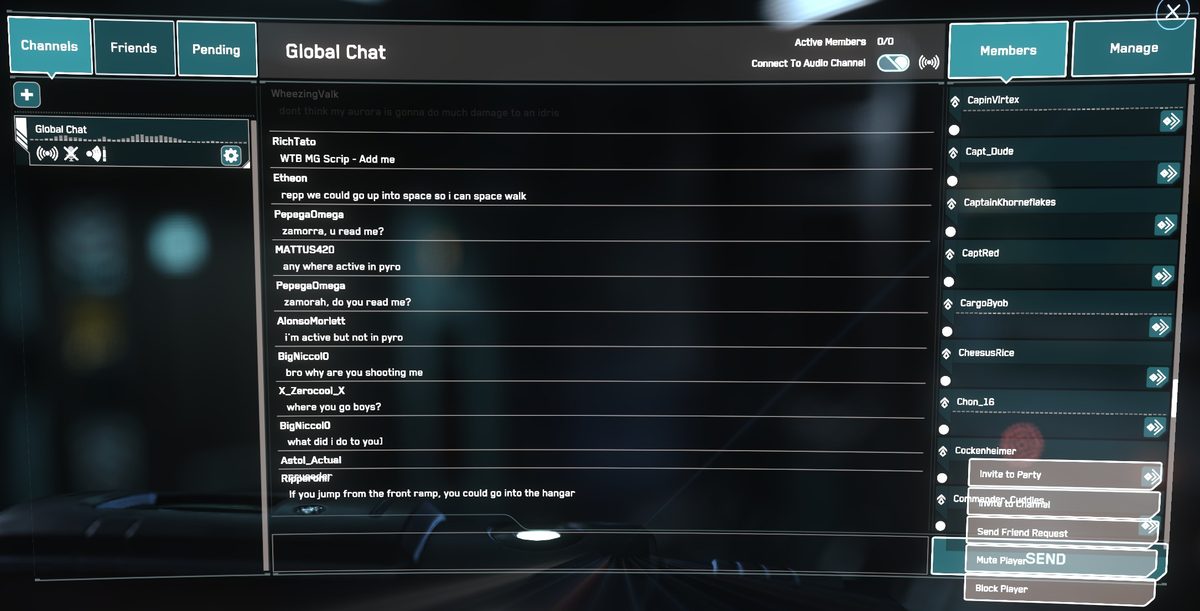
Method 3 — Add in-game via mobiGlas (Global Chat → Members)
Once you're in the Persistent Universe, you can send a friend request directly from the mobiGlas Commlink without needing to leave the game.
- Press F11 to open the Commlink (or press F1 for mobiGlas and select the Commlink app).
- Select Global Chat (or any active channel) from the left sidebar.
- Click the Members tab on the right side to see everyone currently in the channel.
- Click on the player's name in the Members list.
- Select Send Friend Request from the context menu that appears.
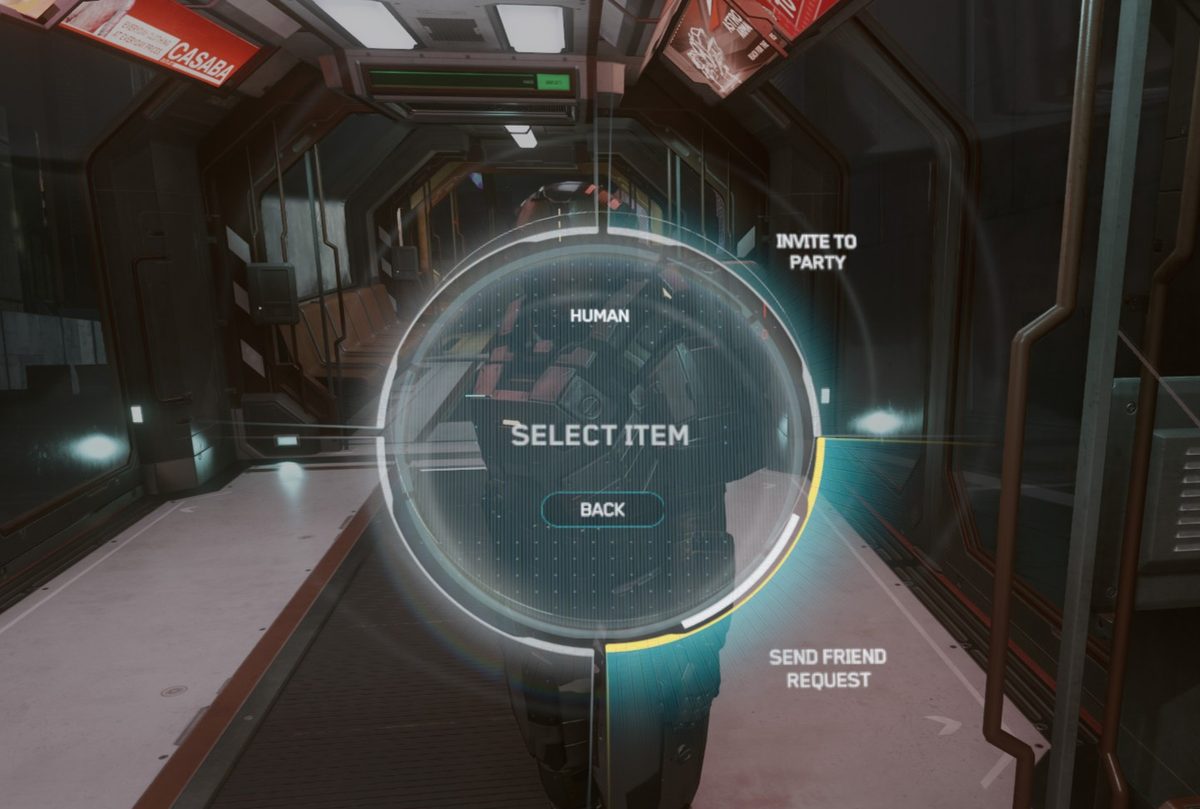
Method 4 — Add via Personal Inner Thought
If you bump into another player in the world, you don't need their handle — you can send a contact request from the interaction wheel.
- Walk up to the other player so they're in interaction range.
- Hold F to open the Inner Thought interaction wheel and aim at them.
- Select Add Contact from the radial menu.
- A request is sent — same flow as the other methods from there.
Accepting an incoming friend request
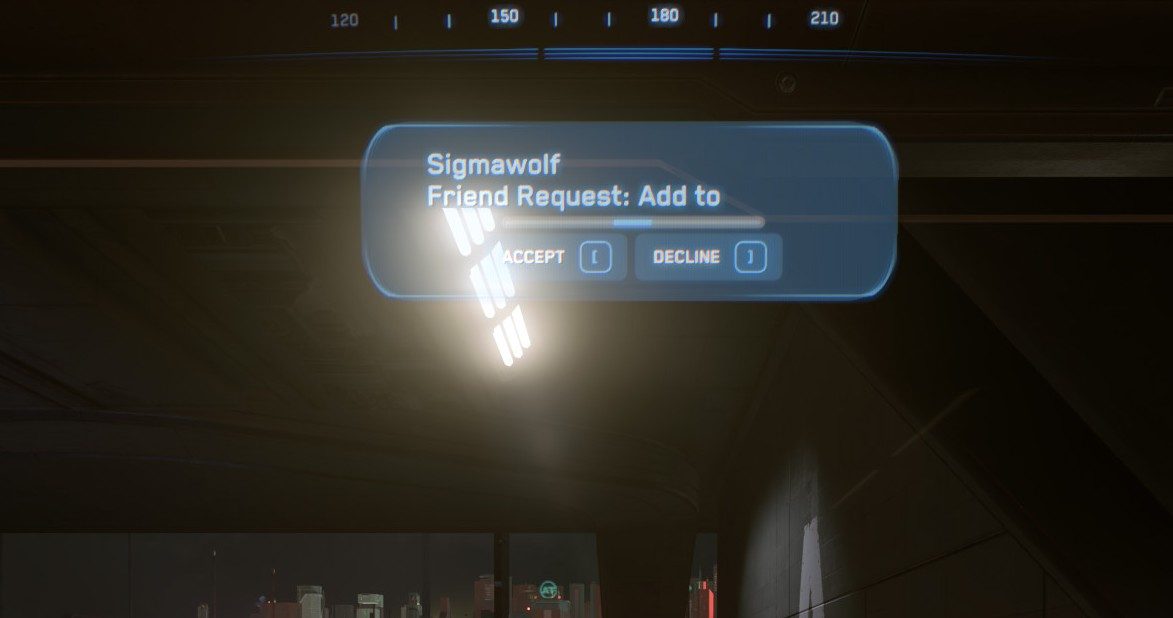
Incoming requests show up in three places — accept from any of them.
Spectrum: Click your avatar (top-right) → Settings → Friends. Pending requests are at the top with Accept / Decline buttons.
Main menu: The Friends panel shows pending requests in a separate section above your accepted contacts.
In-game: Open the Commlink (F11) → Contacts tab. Pending requests sit at the top of the list.
Inviting a friend to your party (and joining their session)
Once the request is accepted, the next thing most players want is to actually play together. Star Citizen uses a party system that tries to place all members on the same shard.
- From the main menu or in-game Commlink, find the friend in your contacts list.
- Right-click (or use the action menu) and select Invite to Party.
- Once they accept, you'll see them under Party.
- From the main menu, the party leader clicks Enter Universe and the rest of the party is matched into the same shard automatically.
- If you're already in-game and want to join their session instead, leave to the main menu, accept their party invite, and re-enter the universe — Star Citizen will route you to their shard.
For a deeper walkthrough of party features, multi-crew permissions, and quantum linking, see our Creating and Managing Parties guide.
Removing or blocking a contact
Remove a friend: In Spectrum or the in-game Commlink, open the contact's profile, click the action menu, and choose Remove Friend. The other player isn't notified, but you'll both disappear from each other's contacts list.
Block a player: From the same menu, choose Block. Blocking removes them from your contacts and hides their messages everywhere — Spectrum DMs, global chat, party invites, and Commlink calls.
Manage blocked users: Spectrum → Settings → Blocked Users. You can unblock from there.
Report a player: Use Report from the same profile menu for griefing or rule violations. Reporting and blocking are independent actions — you typically want both.
Troubleshooting
Friends list is empty in-game
This is the most common issue and it's almost always a display bug, not lost data — your friends are still on your account, the client just failed to load them. Try these in order:
- Confirm in Spectrum first. Log in to robertsspaceindustries.com → Spectrum → Settings → Friends. If your friends are listed there, the data is intact and the in-game UI is just out of sync.
- Close the Commlink and reopen it. Press F11 to close, wait five seconds, press F11 again. Often enough on its own.
- Relog. Quit to the main menu, then back to desktop, then re-launch and re-enter the Persistent Universe. The contacts service refreshes on session start.
- Clear your USER folder. If a relog doesn't work, exit the game and rename or delete
%LOCALAPPDATA%\Star Citizen\LIVE\USER(Windows). The launcher will rebuild it. This wipes keybinds and HUD layouts but it does not affect your account, characters, or friends list — those are server-side. - Verify game files. RSI Launcher → Settings → Verify. Catches a corrupted Commlink asset.
Friend shows offline when they're actually online
Online presence is per-region and updates on a delay. If your friend is on a different region (US/EU/AU) or just logged in, the status can lag by several minutes.
Just send the invite anyway. If you've confirmed out-of-band (Discord, Spectrum DM) that they're online, party invites are delivered even when the status indicator says offline.
Match regions in the launcher. Cross-region party-up still works, but presence is unreliable when one of you is on US and the other on EU/AU.
Restart the Commlink. Press F11 to close, wait five seconds, press F11 again — that forces a presence refresh.
Party or friend invites aren't arriving
Double-check the handle. Spectrum search is exact-match — one wrong character and the invite never reaches them.
Check for blocks. Make sure neither of you has the other blocked. Blocked users silently swallow invites.
Leave full parties first. If you're already in a full party, new invites may be rejected silently. Drop the party and re-invite.
Try the main menu instead. If an invite sent from in-game isn't arriving, send it again from the main menu before entering the universe — that path is more reliable than the in-PU one during patches.
Friend can't see your invite
Have them check Spectrum first (Settings → Friends, and Settings → Notifications). If the invite shows in Spectrum but not in-game, they're hitting the same Commlink display bug — relog or clear USER folder.
Frequently Asked Questions
Related guides
- Creating and Managing Parties in Star Citizen — once your friend is added, set up the party and crew a multi-crew ship together.
- First Days in the Verse — new-player essentials including basic controls and your first mission.
- Star Citizen Keybindings Guide — full list of default controls including F1 (mobiGlas) and F11 (Commlink).
New to Star Citizen? DayOneCitizen.com has a complete first-30-days guide written for brand new players.
Friends added? The party management guide covers forming a group and getting everyone onto the same server.